

“This AI Translator helps me understand academic materials in multiple languages while keeping the meaning accurate. It's much better than traditional translators.”
Annika Palmari
International Student
Remove backgrounds from photos in seconds with Knowant’s free AI background remover. Upload a portrait, product shot, or logo and get a clean cutout or transparent PNG for listings, slides, social posts, and design comps — no Photoshop session required to start.
Record conversations, generate summaries and action items, then send follow-ups without rewriting the meeting.
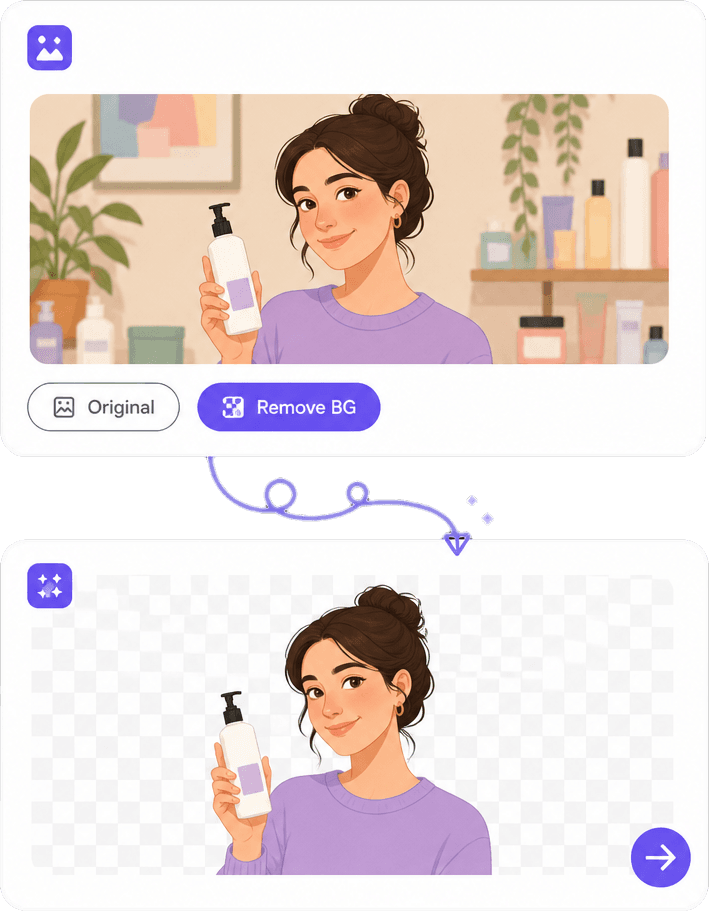
Drop a file and the tool runs segmentation automatically — no lasso or magic wand. Best for single-subject shots with clear contrast; you get a preview quickly so you can decide whether to download or upload a cleaner source photo.
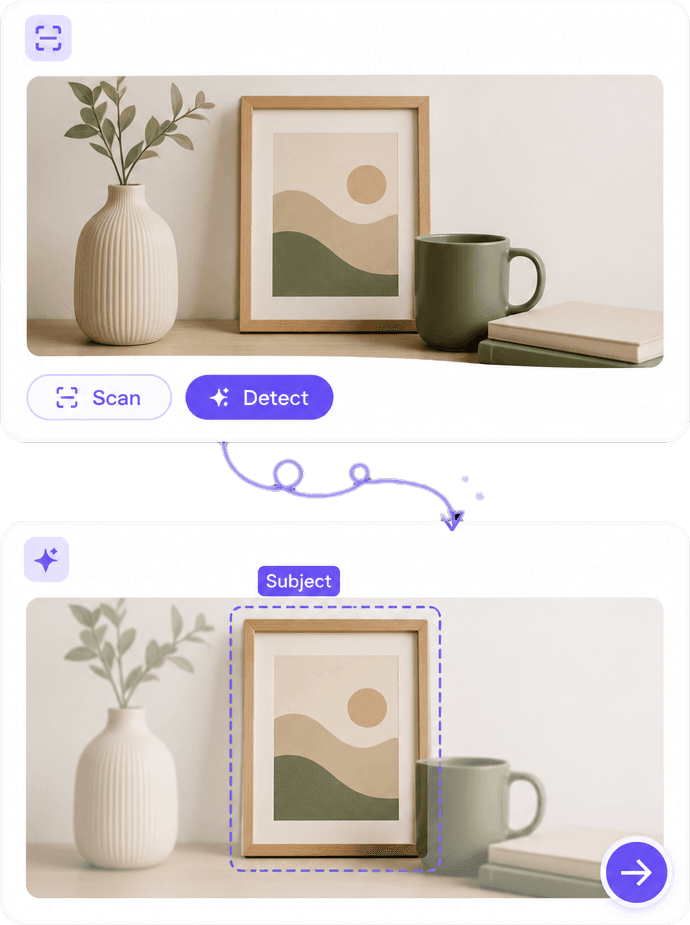
The model aims to keep hair strands, fabric texture, and product edges while dropping the backdrop. Complex scenes (mirrors, motion blur, low light) may need a retake or touch-up in an editor — honest limits beat overpromising pixel-perfect masks every time.
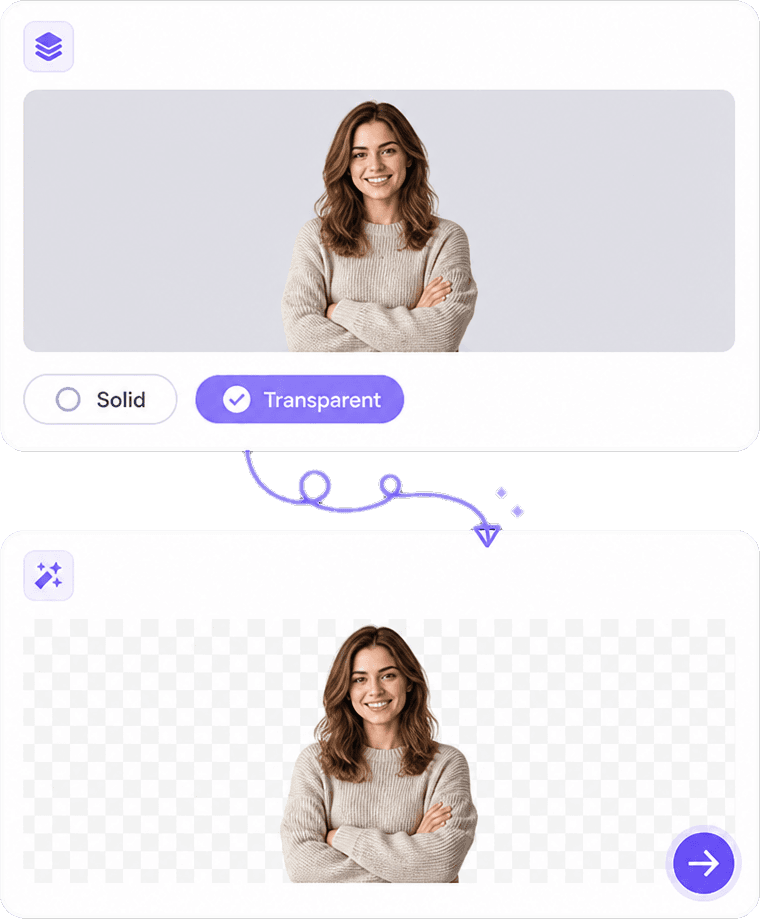
Export PNG with alpha for overlays and mockups, or place the subject on white, brand color, or a simple replacement background for marketplaces that require uniform listings. Match the export to where the image will live, not just what looks good in preview.
Tracing edges by hand is tedious and easy to get wrong on hair, glass, and soft shadows. This page gives you a fast first pass you can download or refine. For batches of catalog images or branded templates, Knowant Creator extends the same workflow with more control.
Turn around listing photos and social assets in minutes instead of blocking a designer for every SKU.
Useful starting point for e-commerce white-background standards and layered marketing creative.
Transparent PNG for compositing, or flat fills when your channel requires a consistent catalog look.
Portraits, pack shots, logos, and simple object photos — not a substitute for every studio retouch job.
Upload once, let the model find the subject, then export transparent PNG or swap in a solid or custom backdrop — three steps from raw photo to asset-ready file.
Choose a photo where the subject is in focus. JPG and PNG are typical; avoid heavy compression or extreme blur if you care about edge quality.
Run AI removal and inspect the preview around hair, wheels, handles, and thin parts. If the mask looks off, try a tighter crop or a photo with simpler backdrop before you export.
Save transparent PNG for design tools, or apply a replacement background for listings. Open Knowant Creator if you want to generate matching scenes or resize for ad formats.
Shop owners, marketers, and designers share how quick cutouts help them ship listings, campaigns, and presentations on deadline.
“This AI Translator helps me understand academic materials in multiple languages while keeping the meaning accurate. It's much better than traditional translators.”
Annika Palmari
“I use it to generate eye-catching YouTube thumbnails and social media graphics. The image quality is fantastic and saves me a lot of time.”

Ryan Hoffman
“Converting invoices and purchase reports into Excel has become effortless. The table recognition is incredibly accurate.”

Austin Distel
“I use it to generate social media posts and ads. The content is always engaging and relevant to my audience.”

Brooke cagle
Questions about transparent PNGs, product photos, portraits, file types, and when AI background removal is the right tool versus full photo editing.
An AI background remover uses machine learning to guess which pixels belong to the main subject and which belong to the background, then outputs a cutout or transparent image. Knowant’s free tool runs in the browser so you can test product and portrait photos without installing desktop software.
Upload your image, run background removal, and download when the preview looks acceptable. PNG preserves transparency; JPG does not. For logos and overlays, check edges on a checkerboard or dark background before you publish.
You can remove backgrounds on this page without signing up for basic use. Limits may apply to resolution or daily usage depending on current product settings. A Knowant account unlocks related Creator tools when you need more generations or editing in one workflow.
Single subjects on contrasting or plain backgrounds usually segment cleanly. Group shots, busy patterns behind the subject, and reflective packaging are harder. For marketplace rules, many sellers shoot on gray or white and then remove or replace the backdrop for consistency.
Yes — sellers use AI cutouts to place products on white or brand backgrounds for listing galleries. Always verify your marketplace’s image guidelines (size, padding, pure white requirements) and review the mask on zoom; automated tools may miss small tags or strings.
Modern models handle many portraits and pets well, but wispy hair against busy backgrounds can still show halos or missing strands. Brighter, simpler backdrops and higher-resolution sources help. For hero campaign shots, plan a quick manual cleanup in your editor if the preview is close but not perfect.
Upload common raster formats such as JPG and PNG. Download is typically PNG when you need transparency. If you only need a white background JPEG for a catalog, export accordingly — transparency is for design compositing, not every upload portal.
This page is a focused free step: upload, remove, download. Photoshop and Canva add layers, typography, and brand kits. Use Knowant here for a fast cutout; use Knowant Creator (https://www.knowant.com/product/create-with-ai) when you want AI-generated scenes, variations, and image editing in the same stack.
 Knowant
Upload JPG or PNG and isolate people, products, pets, or logos with AI. Download transparent backgrounds for Amazon and Shopify, replace with white for catalog standards, or prep layers for Canva, Figma, and slide decks — free to try without creating an account.